Install the app and sign in
Use the download link provided during onboarding. Open Miraven and sign in with the same account you use for the web portal. Contact support@miraven.com if you need the download link sent again.
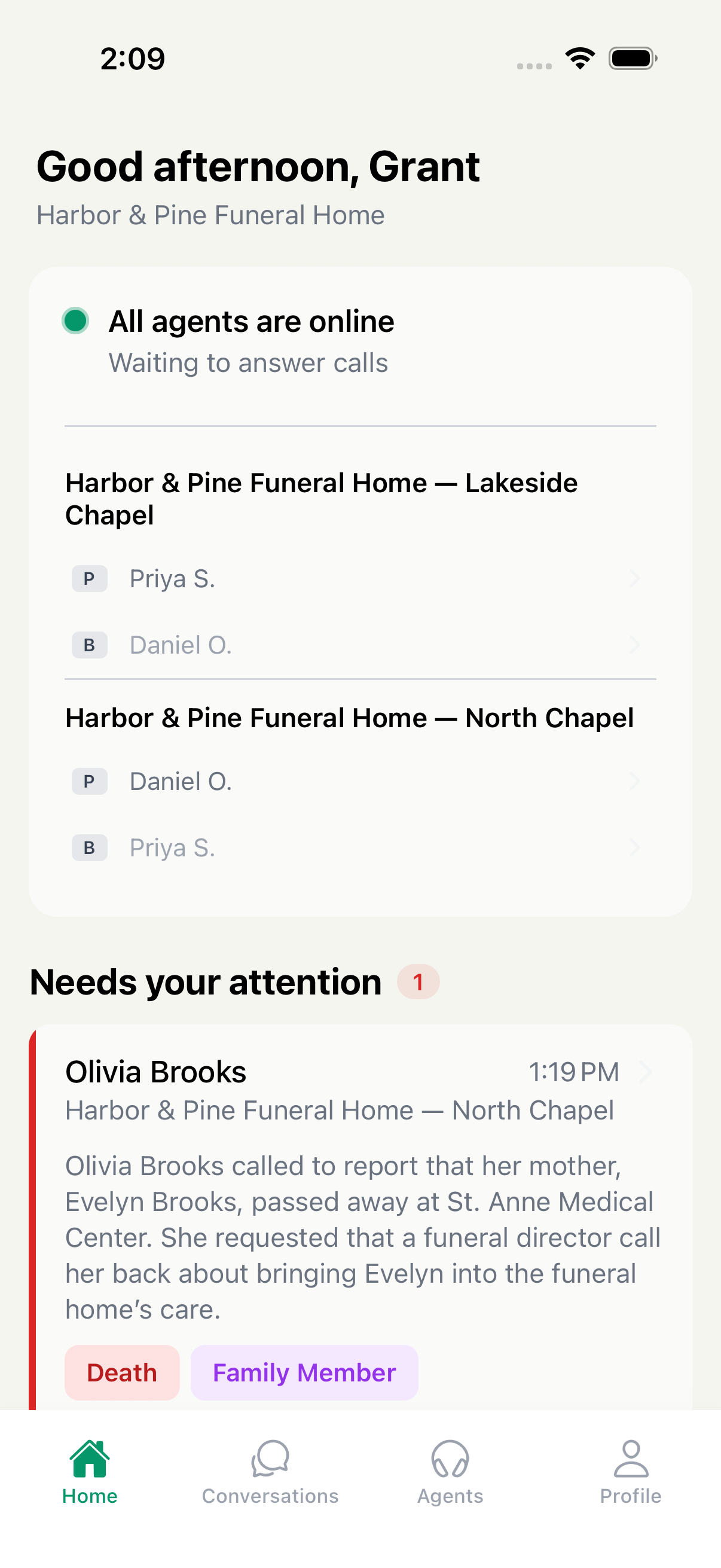
See what needs attention on Home
- See Miraven’s current waiting or handling-calls status indicator.
- Review open escalations that still need a staff response.
- See today’s recent call activity.
- Administrators can update primary and backup on-call coverage.
Find and review conversations
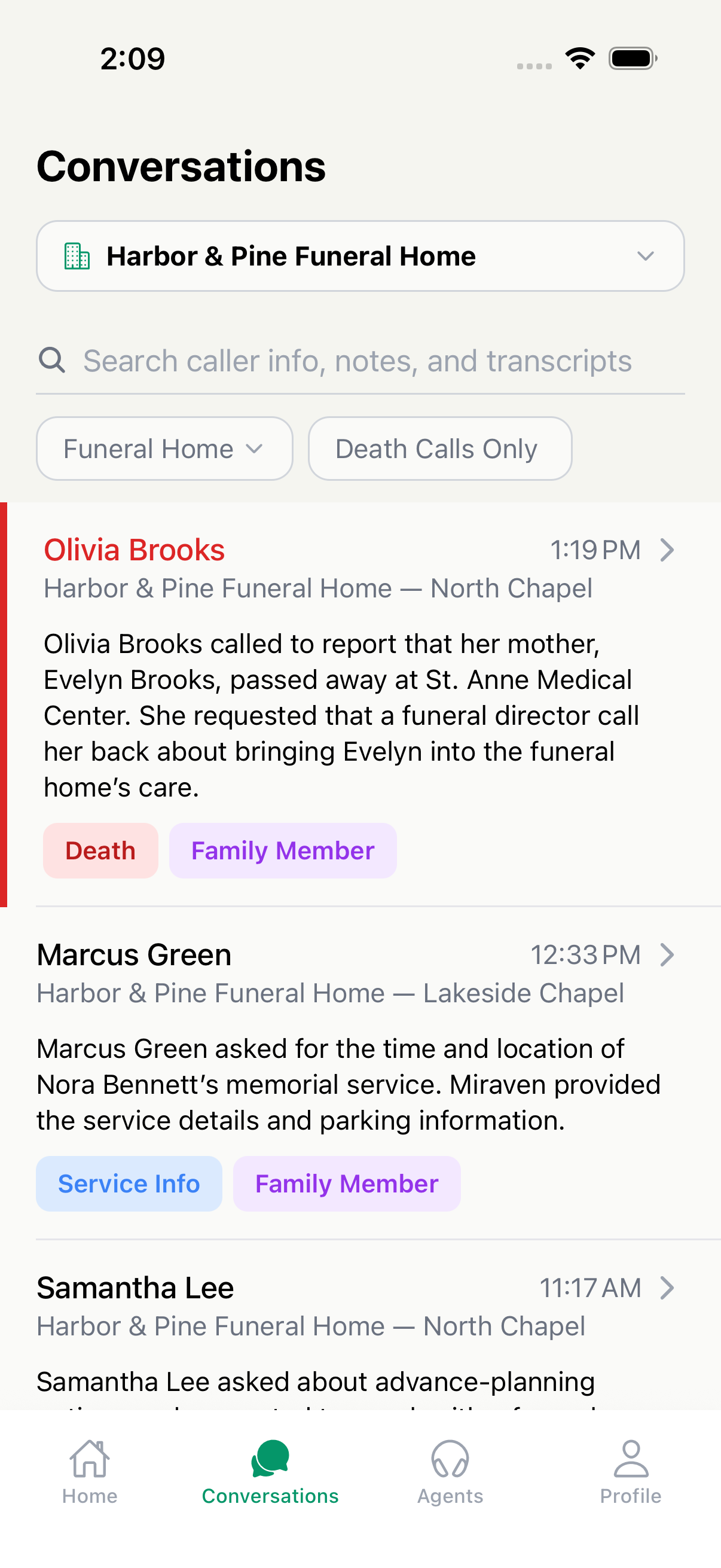
Open Conversations
Tap Conversations in the bottom navigation.
Find the call
Search caller information, notes, or transcript text. You can also filter by agent or show death calls only.
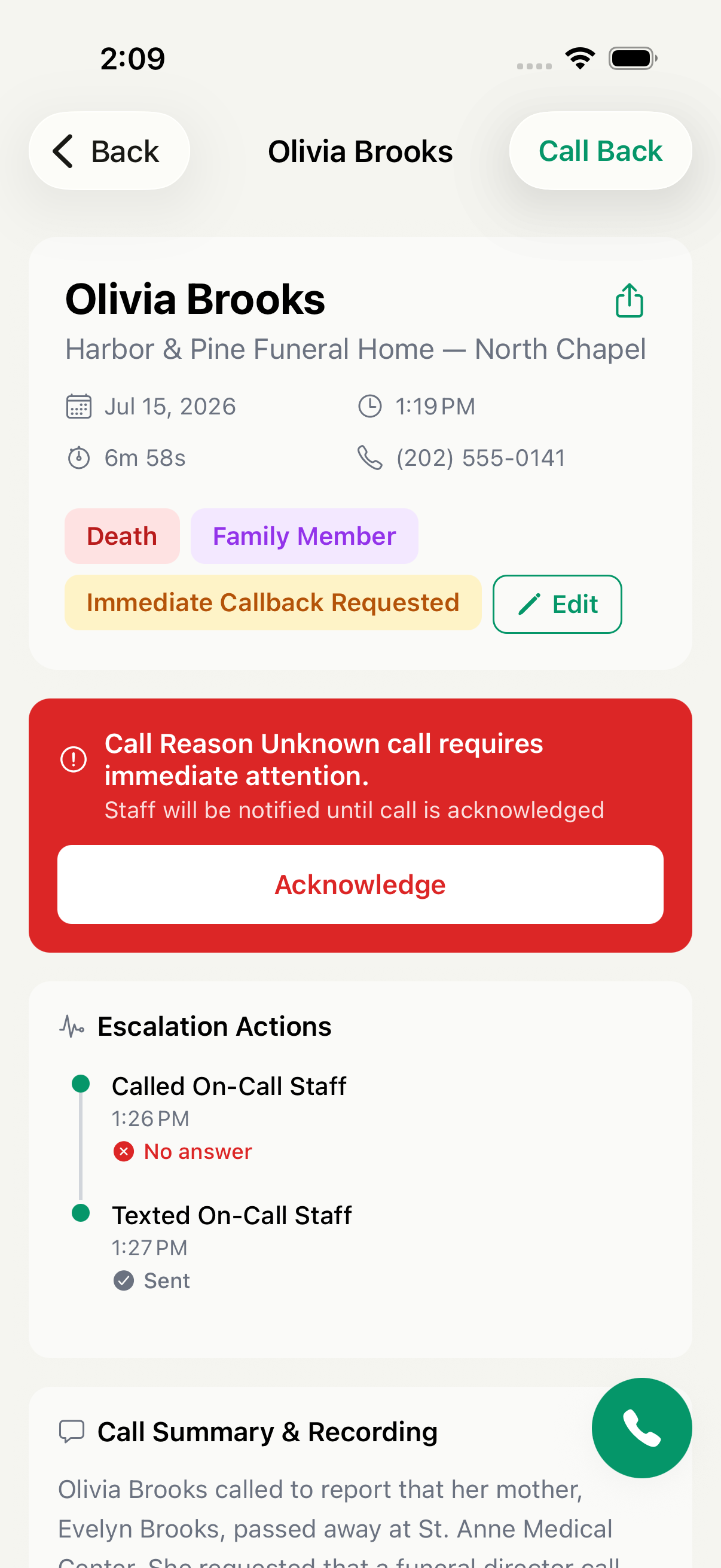
Open the details
Tap a call to review its summary, collected details, transfer result, and escalation timeline. See Find call recordings and transcripts for playback and transcript controls.
Acknowledge when you take over
If an escalation is open and you are taking responsibility, tap Acknowledge so the rest of the team can see it is covered.
Check agents and your profile
Administrators can use Agents to see each location’s phone number, call activity, open escalations, and on-call person. Use Profile for your name and avatar, notification preferences, support and legal links, and signing out.
Still need help?
Email support@miraven.com or call (201) 824-4343.