In the web portal
Open Conversations
Sign in at app.miraven.com, select Conversations, and find the call.
Open the call
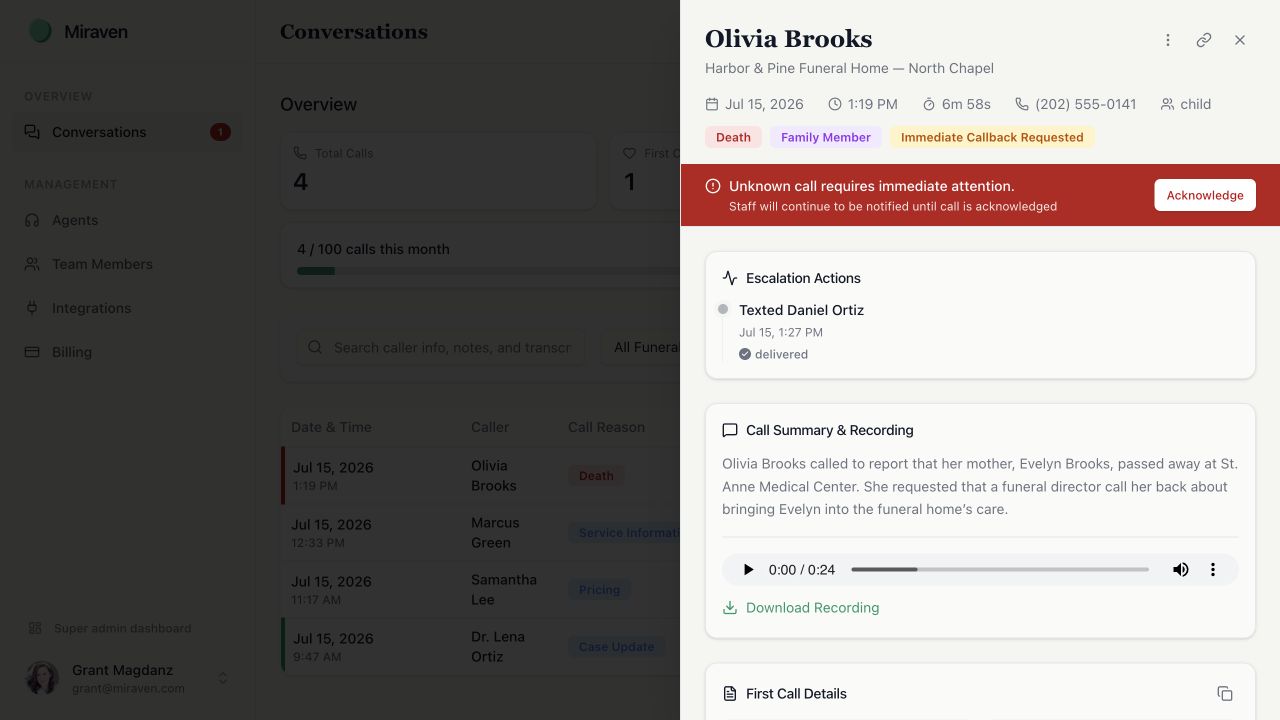
Select the conversation to open its details.
Listen or download
In Call Summary & Recording, use the audio player or select Download Recording. The recording opens in your browser; use the browser’s download control if it does not save automatically.
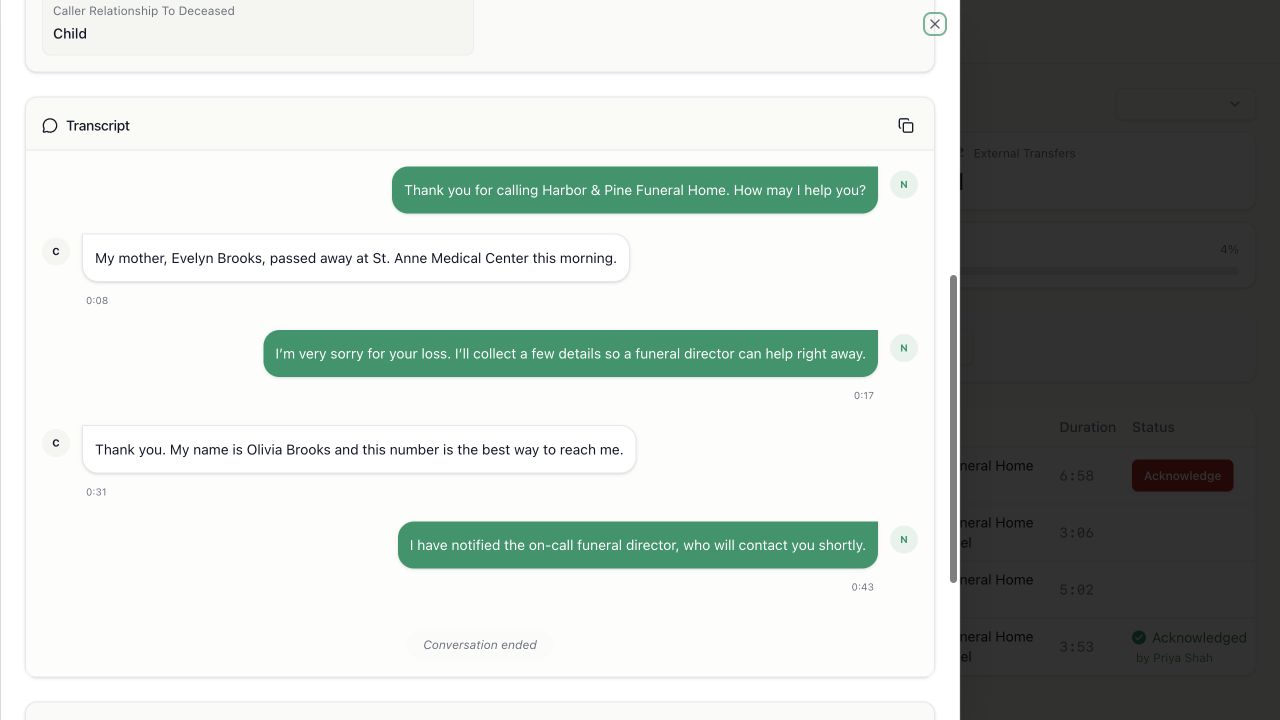
Read or copy
Scroll to Transcript. Select the copy icon to copy a formatted transcript to your clipboard.
In the mobile app
Open Conversations
Tap Conversations, then tap the call you want.
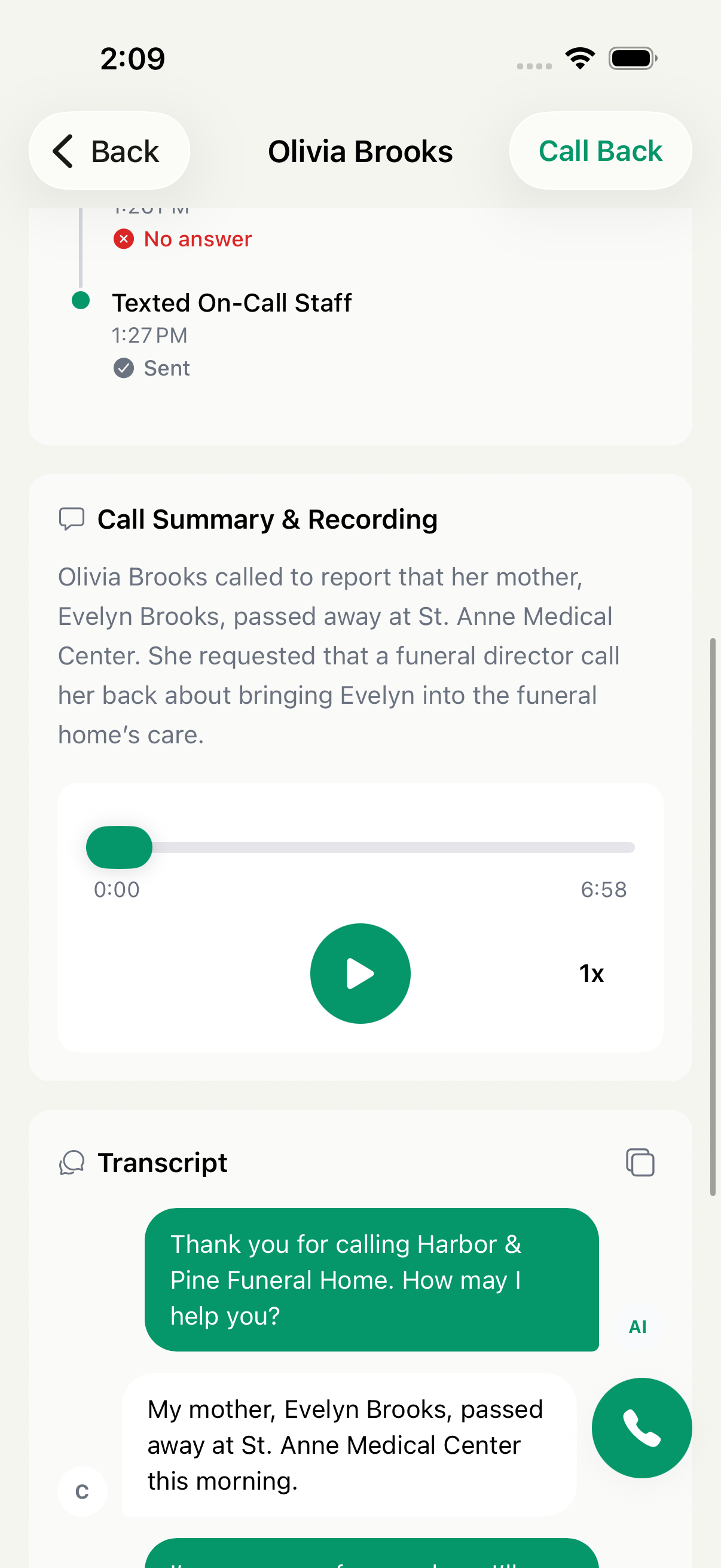
Listen to the recording
Use play or pause, drag the progress bar, or change the playback speed between 1x, 1.5x, and 2x.
Read or copy the transcript
Scroll to Transcript and tap the copy icon.
Recordings and transcripts in notifications
Staff who opt in to email after every call, or who are covered by an email notification rule, may receive the transcript and recording as attachments when those files are available and the recording can be fetched. Miraven’s conversation page remains the in-product place to review the call.
If a recording or transcript is missing
- Confirm the call has ended. A newly completed call may need a short time to finish processing.
- Refresh the web page or pull down to refresh the mobile conversation list.
- If it still does not appear, contact Miraven Support with the funeral home, call date, approximate time, and caller number, if it is safe to share.
Who can open a conversation
Conversation details are limited to signed-in Miraven users with access to the funeral home’s organization. A Miraven conversation link does not make the recording or transcript public.
Still need help?
Email support@miraven.com or call (201) 824-4343.